
How to Create a Mind Map in Google Docs
By Duy Nguyen · Founder, Mind Map Online
Quick answer: Google Docs can build a basic mind map with the Drawing tool, but every branch is placed by hand. For fast brainstorming, build the map in a browser mind map app with keyboard shortcuts and auto-layout, then export PNG/PDF/JSON and insert it into your document.
Why Google Docs makes mind mapping slow
Google Docs is built for linear text, so a mind map has to live inside its Drawing tool — a small canvas where you place every shape and line yourself. That works for a five-node sketch and falls apart at twenty.
The drawing is also detached from the text around it. Reordering ideas means dragging shapes, and there is no auto-layout to tidy the result. A browser mind map app keeps the structure and the layout in sync while you think.
Method 1: Build a mind map directly in Google Docs
- Open your document and go to Insert → Drawing → New.
- Add a shape for your central idea and more shapes for branches.
- Connect them with lines and label each node.
- Position every shape manually — this is the slow part.
- Click Save and Close when the map is finished.
This works for a 5–10 node outline. Beyond that, moving branches around in a Drawing becomes painful, and there is no auto-layout or keyboard branching.
Method 2: Faster workflow for most people
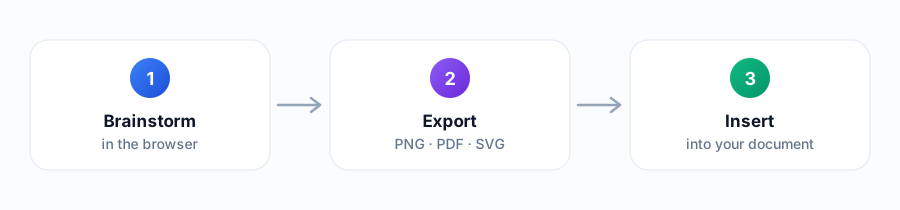
- Open Mind Map Online and start from the central idea.
- Use Tab and Enter to create branches in seconds — no drawing tool needed.
- Apply a clean theme and one of four auto-layouts.
- Export as PNG, PDF or JSON with no watermark.
- Insert the exported file into Google Docs (Insert → Image / File).
Google Docs Drawing vs a mind map app
| Criteria | Google Docs (Drawing) | Mind Map Online |
|---|---|---|
| Time to first map | Insert → Drawing → New, then place shapes | Under a minute — type and press Tab |
| Adding a node | Insert a shape, then draw a connector | One keypress (Tab for child, Enter for sibling) |
| Re-arranging | Drag every shape by hand | Automatic re-layout |
| Look | Format each shape manually | One-click themes |
| Export | Save and close, then insert into the doc | PNG, PDF, SVG — no watermark |
| Account | A Google account is required | No account at all |
| Best for | A tiny diagram that lives inside the doc | The actual thinking and structure |
A worked example: an essay outline
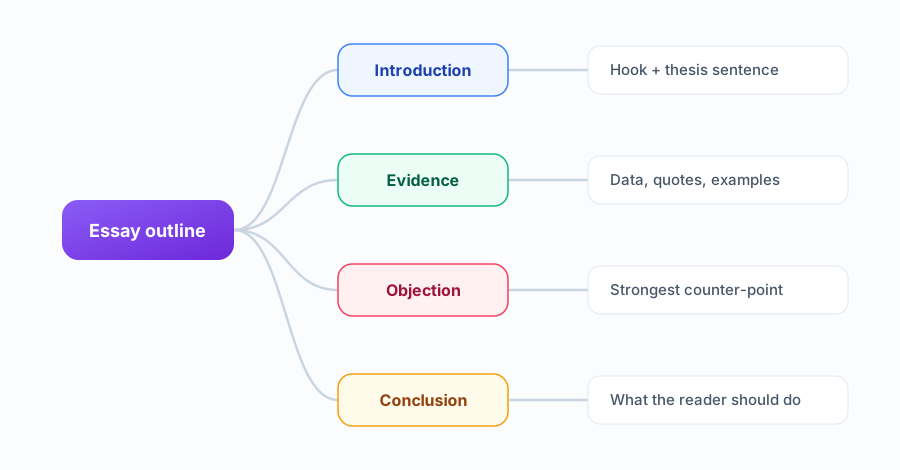
Take a 1,500-word essay. You open the canvas, type the thesis as the central idea, then press Tab for each section: Introduction, Argument 1, Argument 2, Counter-argument, Conclusion. A second Tab under each section gives you the supporting points.
In Google Docs the same outline means Insert → Drawing → New, then dragging a text box per point and joining them with lines. Move one section and you re-position the others by hand. The browser map takes a couple of minutes; the Docs drawing takes several times that — and you still have to export and insert it.
Getting the map into your document cleanly
Export the finished map as PNG for on-screen documents or PDF and SVG for printing, then drop it into Google Docs with Insert → Image. Mind Map Online exports all three with no watermark and no account, so the file matches what you see on the canvas.
When to use each option
- Use the Drawing tool for a tiny inline diagram that must live inside the doc.
- Use a dedicated mind map app when structure, speed, and visual clarity matter.
- For students drafting essays or revision notes, browser-first usually wins — then the image drops into Google Docs for the final write-up.
Prefer a different document tool? See our mind map in Word guide, keep your outline in plain text with the JSON converter , or start from a free template .
Sources & further reading
FAQ
Can I create a mind map in Google Docs?
Yes, roughly: use the Drawing tool (Insert → Drawing → New) and build boxes and lines by hand. It works for simple maps, but every branch requires manual positioning — slow for anything beyond 10 nodes.
Is Google Docs or an online mind map app faster?
For real mind mapping, a dedicated browser app is much faster: keyboard shortcuts (Tab/Enter) create branches instantly, auto-layout arranges them, and themes style the whole map in one click. Google Docs is better when the final deliverable is a document.
How do I put a mind map into Google Docs?
Create the map in a dedicated tool, export as PNG, PDF or JSON, then insert it into Google Docs (Insert → Image or File). This keeps the map clean and the document workflow simple.
Are there Google Docs add-ons for mind maps?
Some third-party add-ons exist, but most are paid, outdated, or limited. For most users the faster path is a free browser tool plus image export into the doc.
Does Google Docs have a mind map template?
Not natively. Google Docs has no built-in mind map template — you either draw one with the Drawing tool or insert an image exported from a mind map app. The separate Google Drawings app is more flexible than the in-document drawing tool.
Can I edit a Google Docs mind map later?
Yes, by reopening the drawing. But restructuring means moving every shape by hand. When a map changes often, building it in a mind map app and re-inserting the exported image is faster.
What is the fastest way to make a mind map in Google Docs?
Build the map in a browser mind map tool with keyboard branching and auto-layout, export a PNG, then insert it into the doc. For most people this beats drawing shapes inside Docs, especially for maps larger than about ten nodes.