
How to Create a Mind Map in Word
Word can do it, but there is a faster workflow for most users.
By Duy Nguyen · Founder, Mind Map Online
Quick answer: You can create a mind map in Word using SmartArt, but for fast brainstorming a browser mind map app is usually quicker. Build the map online with shortcuts and auto-layout, then export PNG/PDF/JSON and insert into Word.
What a mind map is — and why Word fights you
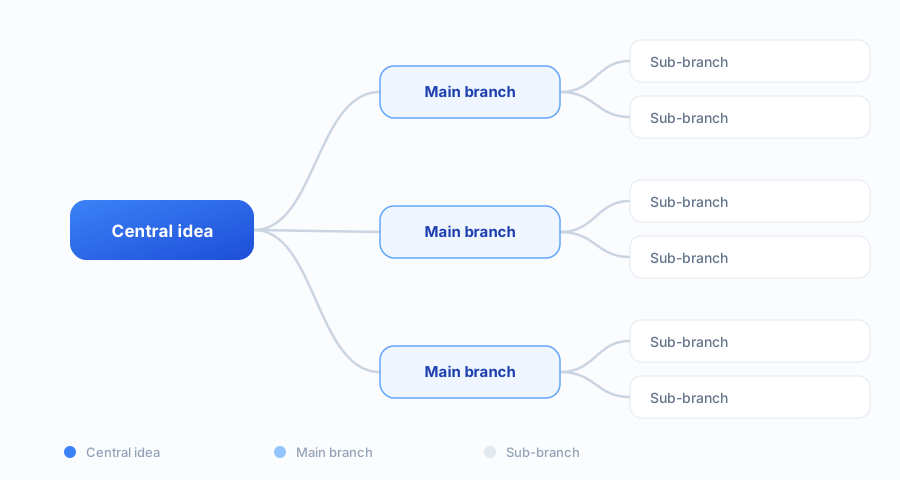
A mind map starts with one central idea and grows outward into branches, then sub-branches. Its power is speed: you capture thoughts in the order they arrive, then rearrange them once the structure becomes clear. That rearrange-it-later step is where most tools live or die.
Word was built for linear documents, not for non-linear thinking. SmartArt gives you a fixed hierarchy you fill in — every new node means clicking Add Shape, and moving a branch drags the layout apart. For a five-node map that is fine. For a real brainstorm with 30+ ideas, it becomes slow and brittle.
Method 1: Build a mind map directly in Word
- Open Word, go to Insert, then SmartArt.
- Choose a hierarchy style and insert it.
- Edit each shape to represent your branches.
- Add more nodes via Add Shape in SmartArt tools.
- Adjust colors and spacing manually.
Method 2: Faster workflow for most people
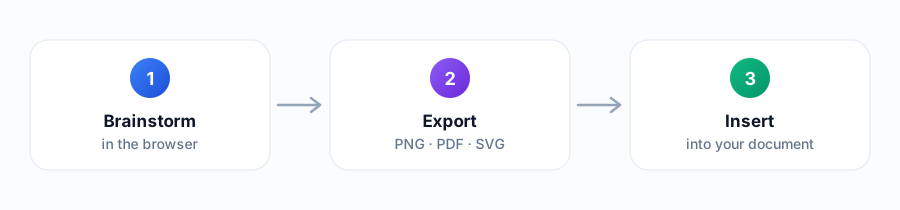
- Open Mind Map Online and start from the central idea.
- Use Tab and Enter to create branches in seconds.
- Apply a clean theme and auto-layout.
- Export as PNG, PDF or JSON with no watermark.
- Insert the exported file into Word.
Word SmartArt vs a browser mind map app
| Criteria | Word (SmartArt) | Mind Map Online (browser) |
|---|---|---|
| Time to first map | 5–10 minutes — insert SmartArt, pick a layout, add shapes | Under a minute — type the idea, press Tab |
| Adding a new branch | One click per node via Add Shape | One keypress (Tab for a child, Enter for a sibling) |
| Re-arranging structure | Manual dragging; the layout falls apart | Automatic — auto-layout repositions everything |
| Look and themes | Format every shape by hand | One-click themes (Notion, Pastel, Cyberpunk…) |
| Export quality | Screenshot or Save as PDF | PNG, PDF and SVG — no watermark |
| Login required | No (but needs a Word licence) | No account at all |
| Works offline | Yes, fully local | Runs in the browser, works once loaded |
| Best for | Final documents and print-ready files | Fast thinking, structuring and rewriting |
A worked example: planning a study week
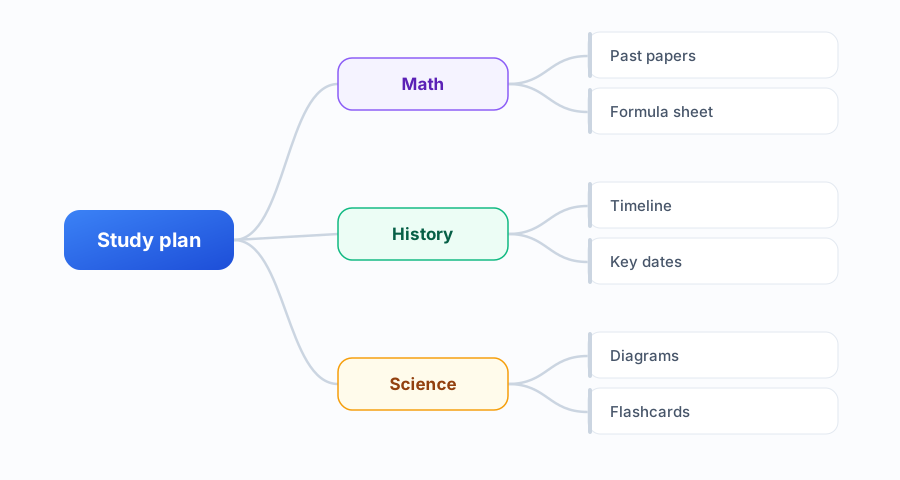
Say you have four subjects and one week before exams. In the browser app you type the central idea — “Exam week” — then press Tab for each subject. Press Tab again for the topics inside each one: for History that might be Timeline, Key dates, and Past papers. Auto-layout keeps every branch readable while the map grows, and you never stop typing to move boxes.
The same map in Word means inserting SmartArt, choosing a hierarchy, then adding each subject as a shape and each topic as a sub-shape — roughly four clicks per node. At twenty nodes that is eighty clicks before you have written a single idea. That gap is the whole argument for brainstorming in a browser first.
When to use each option
- Use Word if your whole workflow must stay in one .docx file.
- Use a dedicated mind map app if speed, structure, and visual clarity matter.
- For students and quick project planning, browser-first usually wins.
Four mistakes to avoid in Word
- Filling SmartArt before thinking. Sketch the branches first; fixed boxes push you into deciding structure too early.
- Nesting more than three levels. SmartArt gets cramped fast — push deep detail into the surrounding text instead.
- Colouring every shape by hand. Word has no mind map theme, so consistency quietly eats your time.
- Screenshotting instead of exporting. A screenshot looks blurry in print — always export a real PNG, PDF, SVG, or JSON.
Getting the map out of Word cleanly
When the map lives in a dedicated tool, export PNG for documents and PDF or SVG for printing. Mind Map Online exports all three with no watermark and no account, so the file you paste into Word is the same one you would print.
Have a map from another tool? The JSON to mind map converter rebuilds it. Or compare the app with other tools in the mind map vs concept map guide.
Sources & further reading
FAQ
Can I create a mind map in Word?
Yes. You can build one with SmartArt in Word. It works for simple maps, but editing branches and moving structure is slower than a dedicated mind map tool.
Is Word or an online mind map app faster?
For quick mapping, a browser mind map app is usually faster: one-click branches, keyboard shortcuts, auto-layout, and export. Word is better when your final deliverable is a document.
How do I put a mind map into Word?
Create the map in a dedicated tool, export as PNG, PDF or JSON, then insert it into Word. This keeps your mind map clean and your document workflow simple.
Do I need login to make a mind map for Word?
No. You can use Mind Map Online with no signup, export as PNG/PDF/JSON, then drop it into Word immediately.
Does Word have a mind map template?
Word does not ship a dedicated mind map template — what it offers is SmartArt hierarchy graphics that you adapt into a mind-map shape. A purpose-built template is easier: open it and start typing.
How do I keep a Word mind map readable as it grows?
Keep SmartArt to three levels or fewer, use consistent capitalisation, and move detail into the surrounding text. If the map keeps growing, it has outgrown Word — rebuild it in a tool with auto-layout.
Can I edit a Word mind map later?
Yes, inside Word. But with SmartArt, restructuring means manually dragging shapes. When the structure changes often, exporting from a mind map app and re-importing the image is faster.